How to Transfer from iPod to Computer:
Notice! For protects your iPad, iPod or iPhone against unwanted detection and synchronization of an empty or incomplete iTunes library, please confirm the Prevent iPods, iPhones, and iPads from syncing automatically option of iTunes is checked, as this connect iPod to computer article shows.Getting Start:
1. Run iCopyBot (An iPad, iPod and iPhone to Computer Transfer software).2. Connect your iPad, iPod or iPhone to computer.
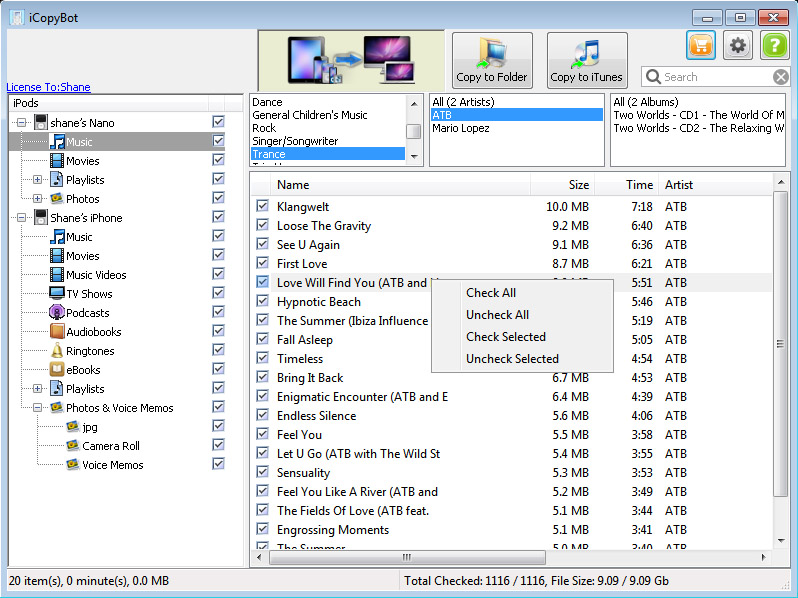
3. iCopyBot should detect your iPad, iPod or iPhone automatically and display its content.
4. If your iPod is not automatically detected after a while, try to unplug iPod and re-connect. If it still not work, try to putting iPod into Disk Mode manually.
5. Check the songs, videos, books, ringtones, photos and playlists that you want to transfer. By default, all contents on your iPad, iPod or iPhone are checked automatically, you can just uncheck the contents that you don't want to transfer.
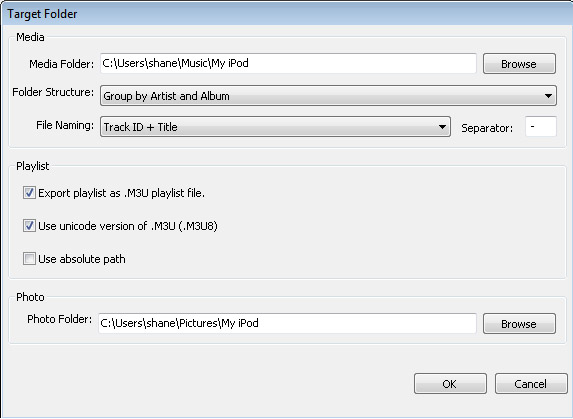
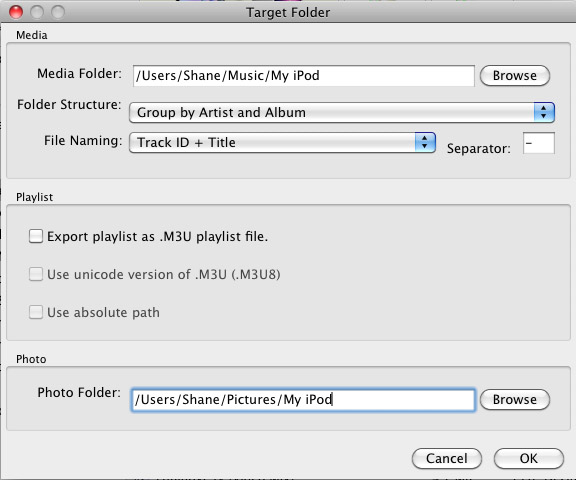
6. Click Copy To iTunes button to transfer selected contents to iTunes, or click Copy To Folder button to only transfer from iPad, iPod or iPhone to a folder on your computer.
iCopyBot for Windows:
iCopyBot for Mac:
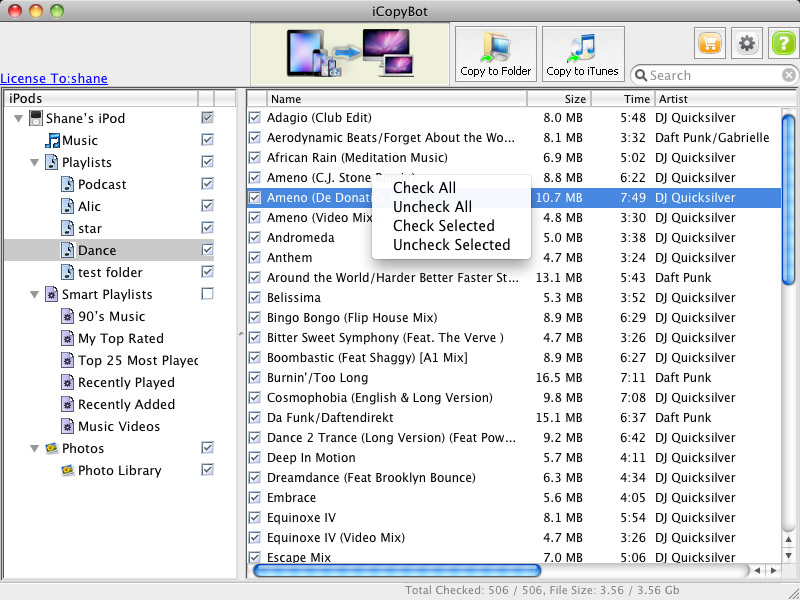
(for copy to iTunes, the target media folder are setting to iTunes 's media folder and cannot be change).
iCopyBot for Windows:
iCopyBot for Mac
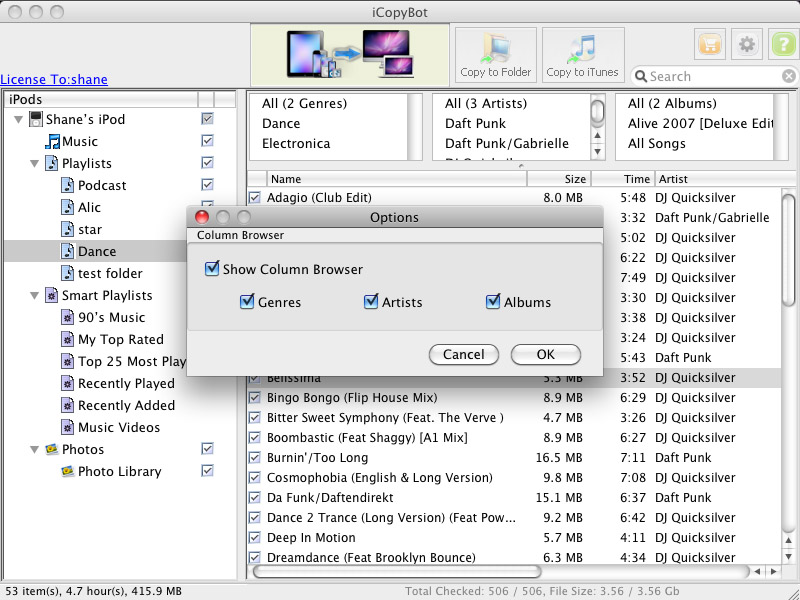
Show/Hide Column Browser
Click button
(On Mac computer you can also select Preferences button from iCopyBot for Mac menu). the program will pop up an option window, you can show/hide Column Browser feature here:
Copyright © 2002-2025 VOW Software, LLC. All rights reserved. Legal | Sitemap | About Us